
Related Products


ANNKE 3K Lite Wired Security Camera...


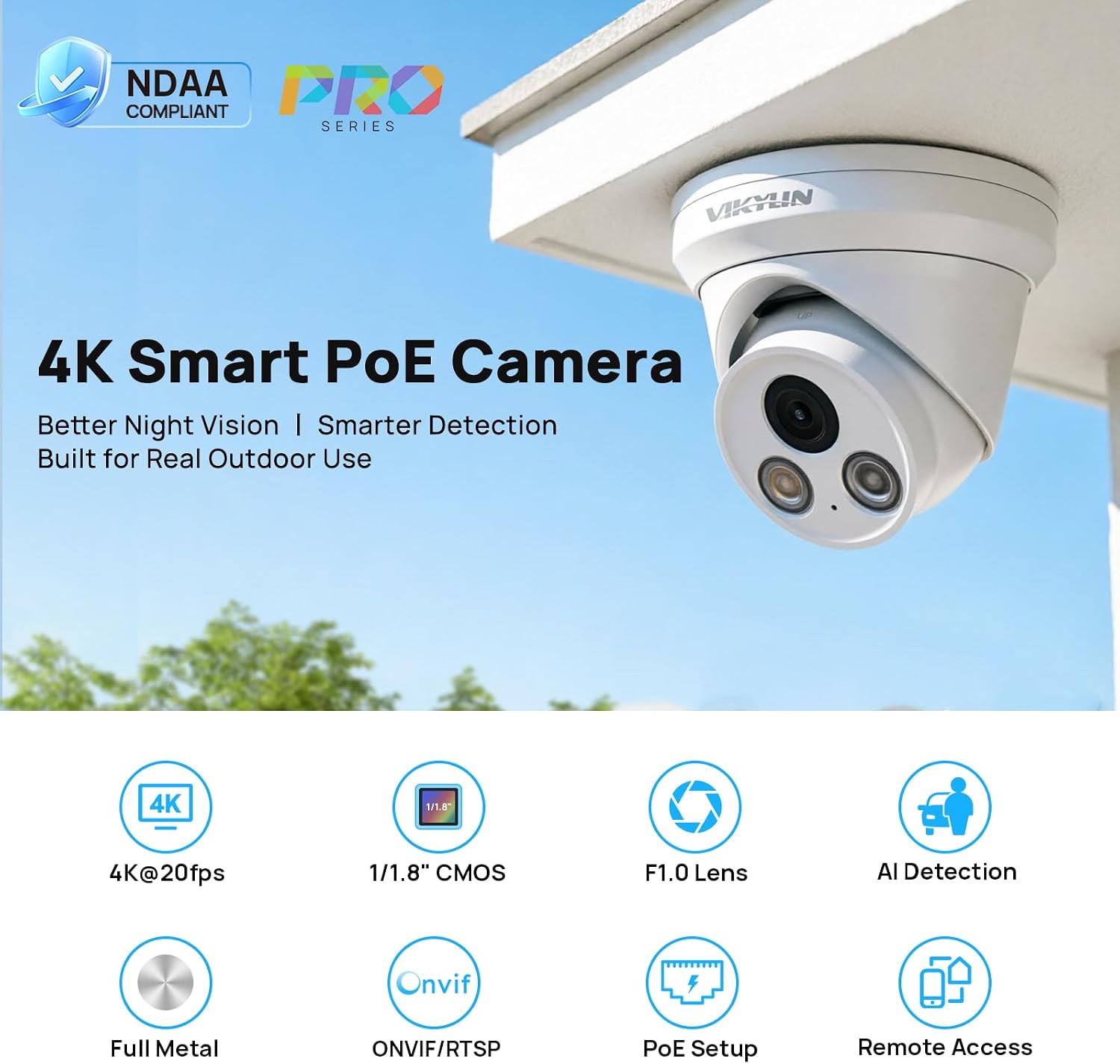


Product description


1 Sharper Moving Subjects
2 Brighter Night Images
3 1/1.8″ Large Sensor
4 Outstanding Night Vision


1 AI Motion Detection 2 3840*2160@20fps 3 Full Metal Housing 4 Advanced ISP 5 Save Energy
How to Add POE Camera to IVMS-4200, Blue Iris or LMS?
This video shows how to connect the camera to PC client software and view live video using iVMS-4200, Blue Iris, and LMS as examples. Interface and feature availability may vary depending on the software version.
Power the camera with a DC adapter and connect it to a router for live viewing via app, PC clent or web. Since no built in microSD card slot, a PoE NVR is recommended for recording, playback.
The video showcases the product in use.The video guides you through product setup.The video compares multiple products.The video shows the product being unpacked. How to Add Z4825 to IVMS-4200, Blue Iris or LMS?
How to Connect ON-VIF Camera to Third-Party NVR through?
This video uses a Hik-vision NVR (GUI 5.0) as an example to show third-party NVR connection via ON-VIF. Before setup, check your NVR’s IP address range (e.g., Hik 5.0 NVRs usually use 192.168.254.x). Use the AjdevTool to change the camera’s IP address to the same network segment, then connect it to the NVR PoE port. Search for available devices in the NVR interface and add it to complete the connection. These steps can also be used as a reference for other ON-VIF-compatible NVR systems.
The video showcases the product in use.The video guides you through product setup.The video compares multiple products.The video shows the product being unpacked. How to Connect IP Camera to Hik-vision 5.0 NVR?
How to Use VideoLink with Motion Detection?
This video shows how to enable the camera’s P2P function via the web interface and add it to the VideoLink mobile app. It also shows how to configure motion detection and enable push notifications on your phone for real-time alerts.
Note: Make sure the app is running and notification permissions are enabled on your phone.
The video showcases the product in use.The video guides you through product setup.The video compares multiple products.The video shows the product being unpacked. How to Use VideoLink with Motion Detection
How to Add Camera to VideoLink App via LAN?
This video shows how to connect the camera to the VideoLink mobile application via a local area network (LAN), without using a computer. It walks you through the setup process step by step, showing how to discover the device on the same network and add it directly to the app for live viewing. This method provides a simple and convenient way to access and manage the camera through your smartphone when a PC is not available.
The video showcases the product in use.The video guides you through product setup.The video compares multiple products.The video shows the product being unpacked. How to Add Camera to VideoLink App via LAN
How to Connect The IP Camera to Hik-vision 4.0 NVR?
This camera is plug-and-play compatible with Hik-vision 4.0 NVR systems. This video shows how to connect the camera to a Hik 4.0 NVR and display live video.
The video showcases the product in use.The video guides you through product setup.The video compares multiple products.The video shows the product being unpacked. How to Connect The IP Camera to Hik-vision 4.0 NVR
Image Sensor 1/1.8″ Progressive Scan CMOS Min. Illumination Color: 0.01 Lux @ (F1.0), 0 lux with warm light or IR Day & Night Day: Color, Night: B/W or Color Focal Length & FOV 2.8 mm, H: 105°, V: 52°, D: 117° DORI 2.8 mm, D: 76 m, O: 30 m, R: 15 m, I: 7 m Supplement Light Type IR, Warm Light; Up to 30 m Image Settings BLC, HLC, 3D DNR, WDR Video Compression H.265+/H.265/H.264 Protocols DHCP, HTTP, ON-VIF, RTSP, FTP Client AjDevtools (Search Tool), LMS(PC Client), Videolink(Mobile APP) Browsers Supported Edge, Chrome, Firefox, Safari OS Supported:PC: Windows, Mac OS; Smartphone: iOS, Android Ethernet Interface 1 RJ45 10 M/100 M self-adaptive Ethernet port Event Motion detection, Human & Vehicle detection Recording Modes Motion-triggered recording (default); Scheduled recording, 24/7 recording
【SEE WHAT OTHERS MISS WITH 4K UHD & 1/1.8″ LARGE SENSOR】 Capture faces, vehicles, packages, and critical details with stunning 8MP 4K Ultra HD resolution. Equipped with a premium 1/1.8″ large image sensor, this PoE security camera gathers significantly more light than standard cameras, delivering brighter images, reduced noise, and superior detail retention in challenging lighting conditions. Compatible with optional wall mount bracket 23BZJ (B0HFS8MVTP).
【TURN NIGHT INTO DAY WITH F1.0 FULL COLOR NIGHT VISION】 Don’t let darkness hide important events. Featuring an ultra-large F1.0 aperture and advanced low-light imaging technology, this outdoor security camera provides vivid full-color night vision and clear infrared monitoring up to 98ft (30m), helping you identify people, vehicles, and activity around your property after sunset.
【STOP FALSE ALARMS WITH AI HUMAN & VEHICLE DETECTION】 Focus on real security threats instead of unnecessary notifications. Advanced AI detection accurately distinguishes humans and vehicles from animals, shadows, rain, and moving trees. Receive instant app alerts, email notifications, recordings, and snapshots when meaningful activity is detected.
【SIMPLIFY YOUR SECURITY WITH PoE & ON-VIF COMPATIBILITY】 Enjoy hassle-free installation with Power over Ethernet technology, using a single cable for both power and data. This ON-VIF-compatible IP camera works seamlessly with most NVRs, NAS systems, RTSP platforms, and third-party surveillance software, making it easy to expand or upgrade your existing security system.
【PROTECT YEAR-ROUND WITH IP67 WEATHERPROOF DESIGN】 Built to withstand rain, snow, dust, and extreme temperatures, this IP67-rated outdoor security camera delivers dependable 24/7 protection in any environment. A built-in microphone captures audio evidence, while the wide 105° field of view helps cover more area with fewer cameras for homes, businesses, warehouses, and driveways.