
Related Products


Witcher 3: Wild Hunt Complete Edition...


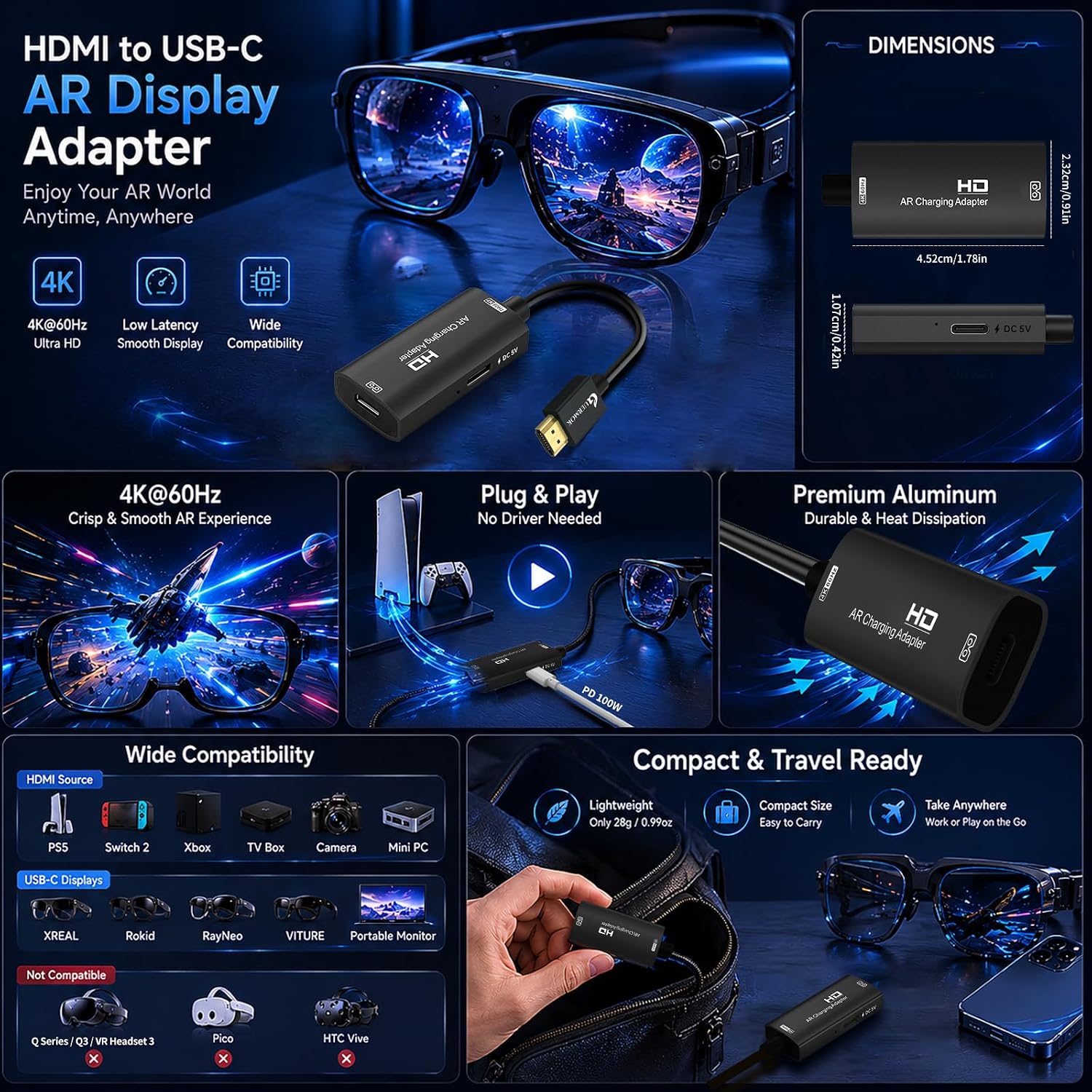


Product description


Switch-Activated TV Mode: Use the original Switch power adapter only to power the console. This product requires a DC 5V USB-C power supply—you can use the included USB-C charging cable with a compatible 5V adapter


DISPLAY MODE ONLY. Does not support USB data transmission, device recognition, spatial features, 3D modes, or companion-app functions.

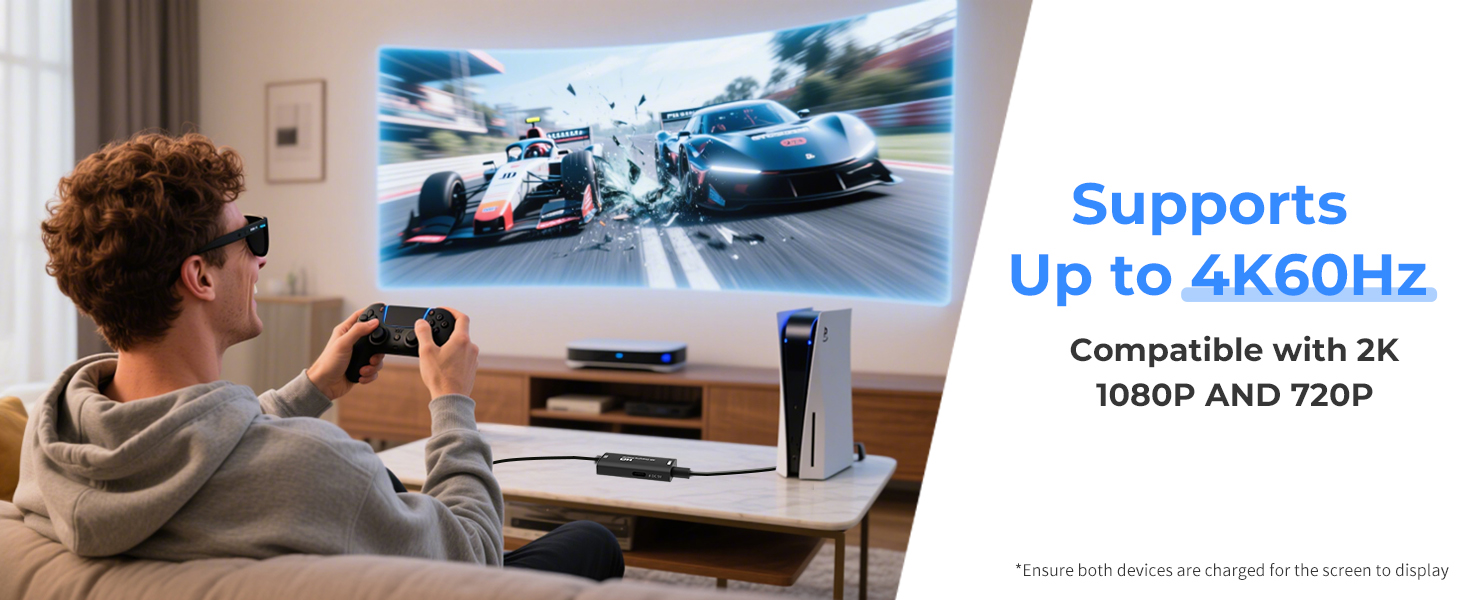
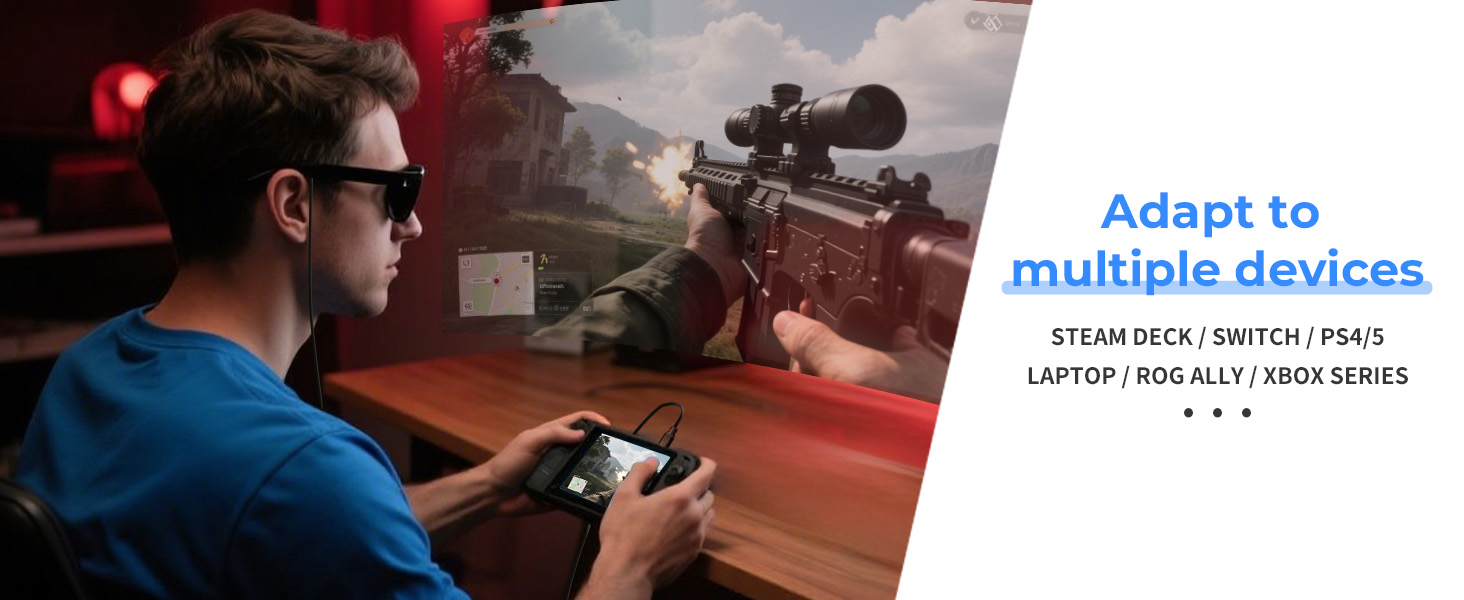
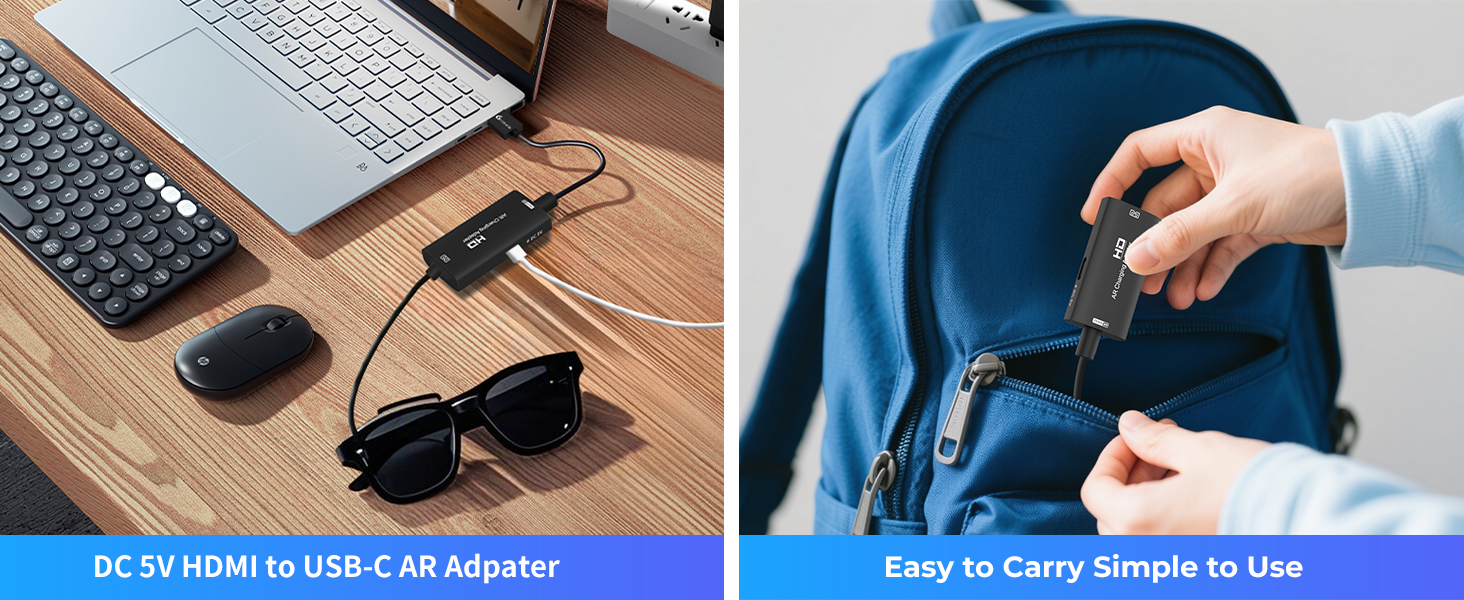
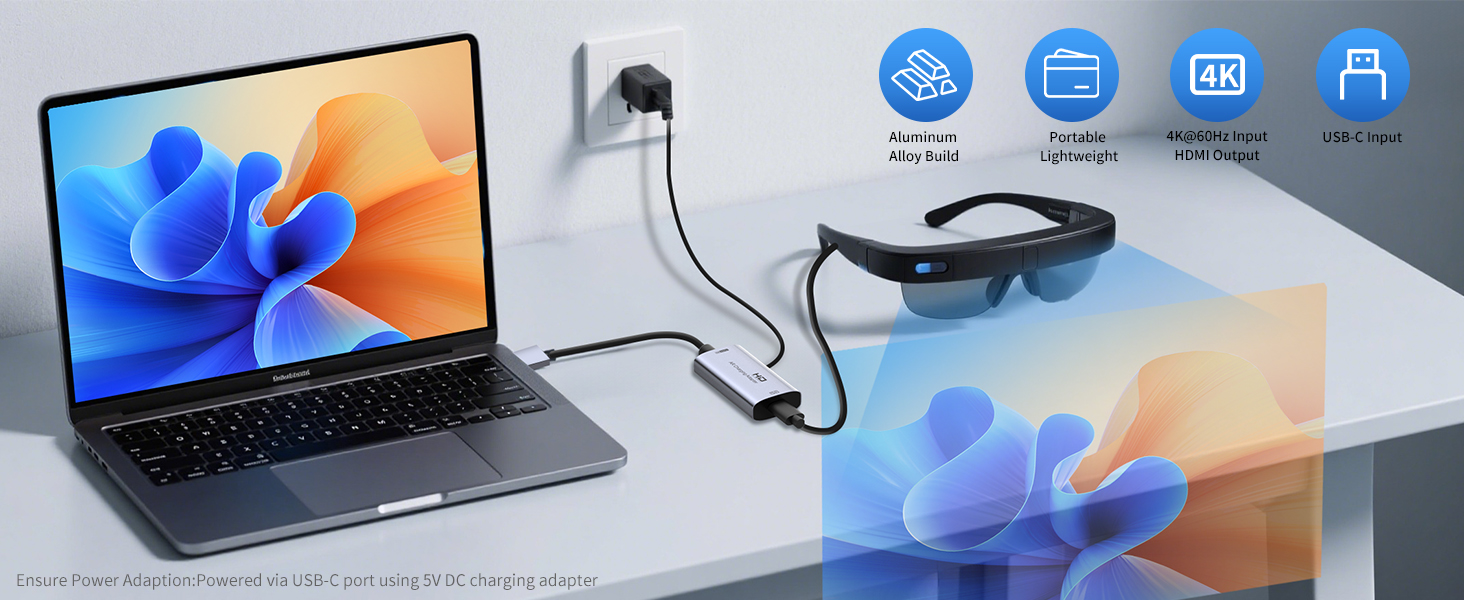
1 Compatibility Guide
2 PS5 to AR
3 SteamDeck to AR
4 Easy to Use Anywhere
5 Laptop to AR
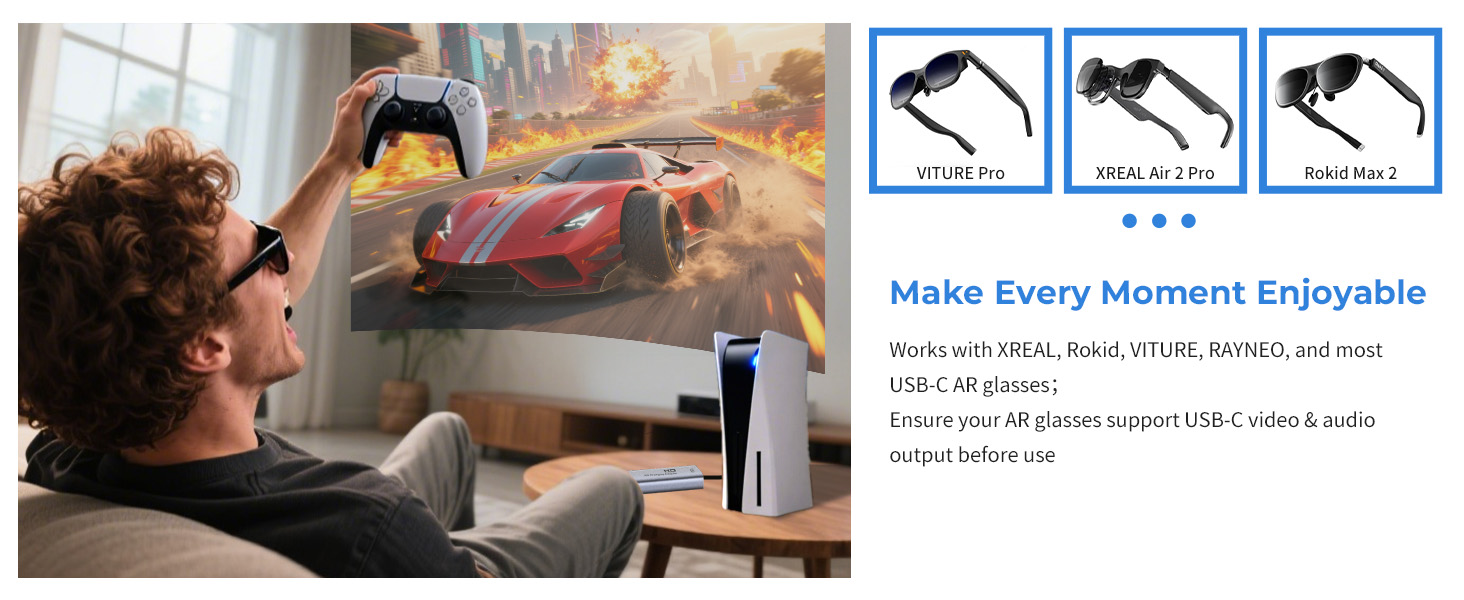 Play PS5 games with AR glasses
Compatible with a wide range of AR glasses, including XREAL Air 2 Pro, XREAL One, XREAL Air, XREAL Air 2, XREAL One Pro, Rokid Air/Max, Viture Pro/One, RayNeo Air 2/3s and more AR/XR Glasses.
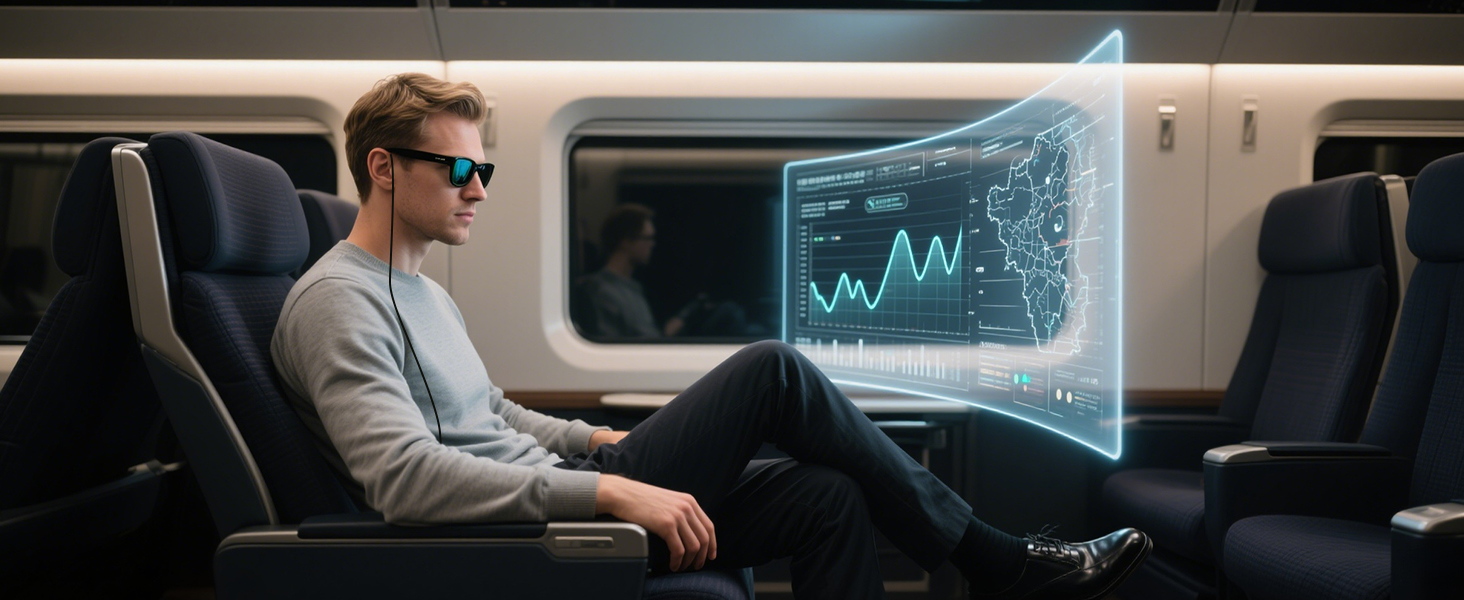 For Learning with AR Glasses on the Go
Turn your travels into a personal theater — enjoy movies anytime, anywhere with your AR glasses
 For Dual-Screen or Large-Screen Office Use
Connect a laptop or desktop computer with HDMI output to compatible AR glasses or a USB-C display
 For Immersive Gaming with AR Glasses
Connect an HDMI game console, gaming PC or other HDMI source to compatible AR glasses for an immersive gaming experience
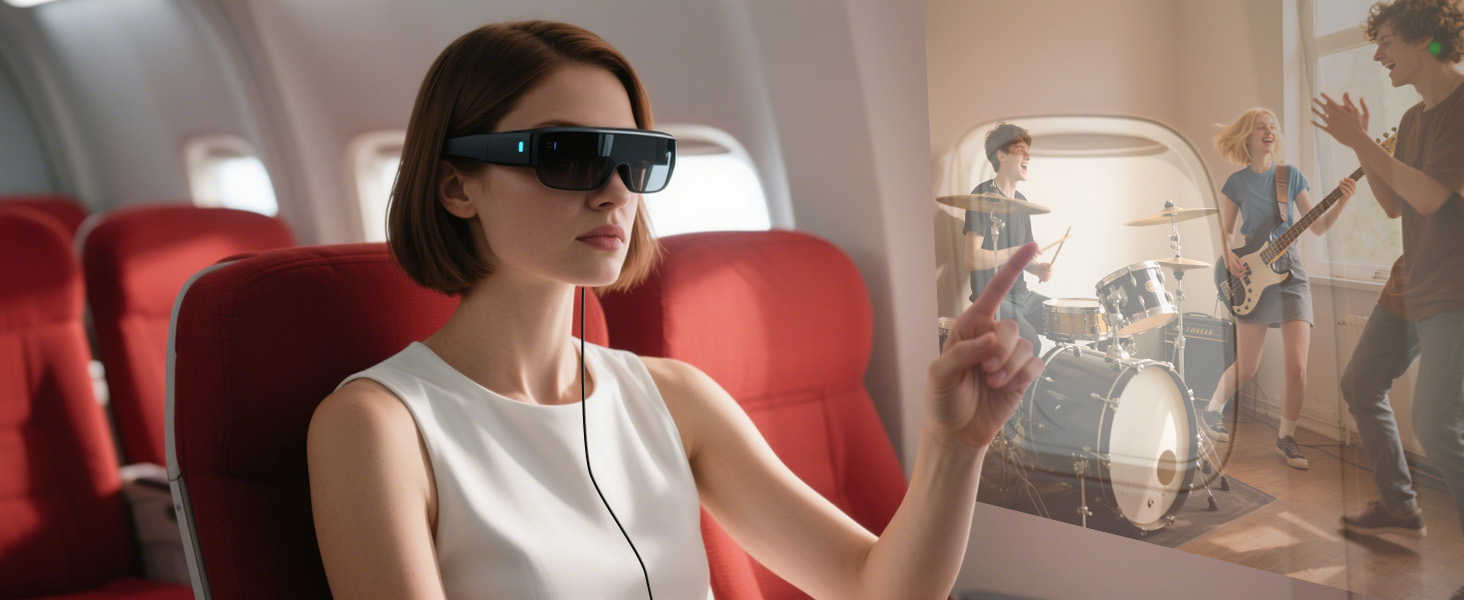 For Watching Movies During Travel
Connect to your AR glasses and stream tutorials, courses, and more
Noted: This product is not compatible with Quest 3 or other VR devices; USB-C devices without video output (charging/data only); Non-DP Alt Mode USB-C displays; Proprietary AR glasses without standard video protocol; Multi-adapter / dock chain setups causing signal loss
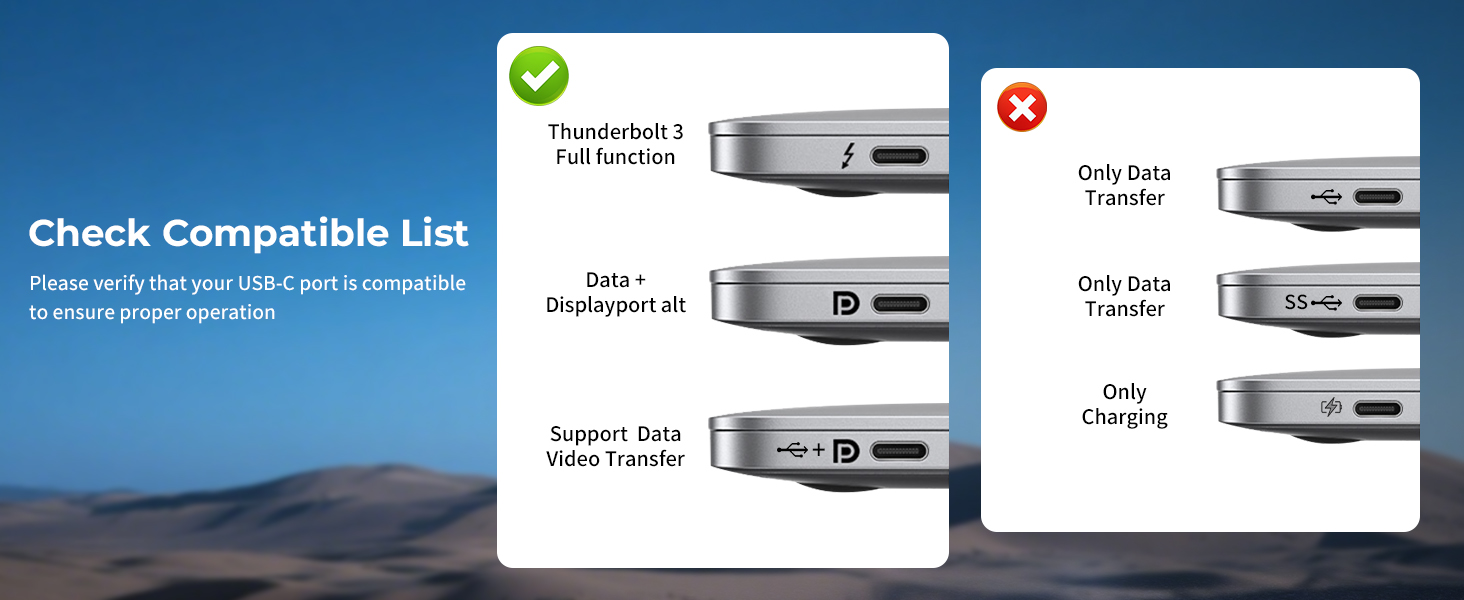
The Type-C DC 5V port provides required power for the adapter and connected USB-C display
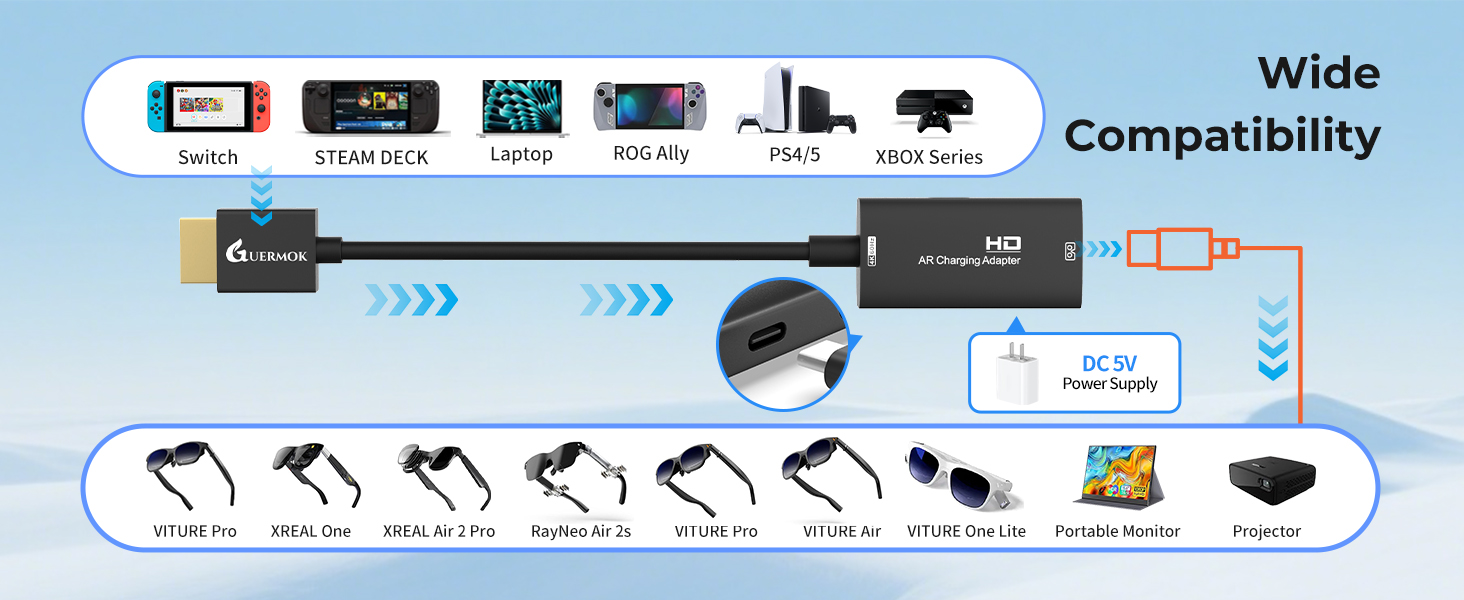
Rokid, Viture, Thunderbird, Rayneo: Ensure AR glasses support USB-C video & audio output before use
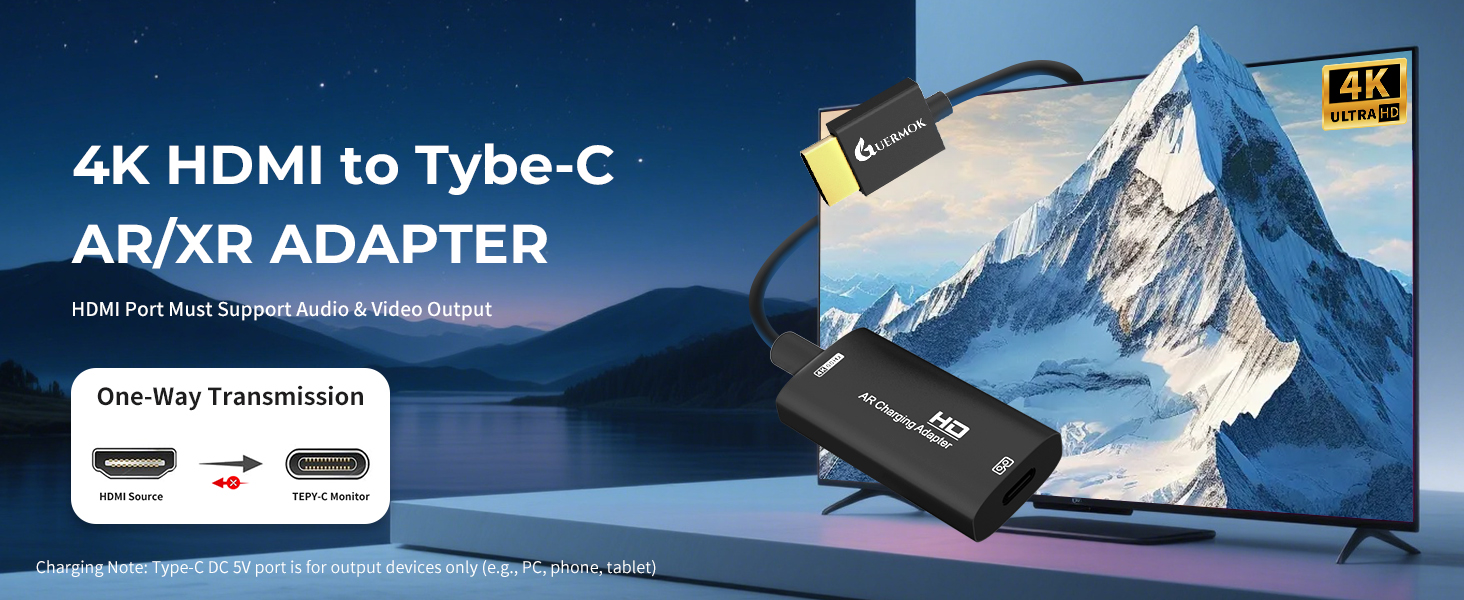
One-way HDMI to USB-C output with 4K support—ideal for AR glasses and external displays
1 USB-C Port Check 2 Wide Compatibility 3 4K Compatibility
Note:
If there is no sound when the USB C adapter is connected to the XREAL Air/Air 2/Air 2 Ultra/Air 2 Pro Series l AR glasses:
1. please update your Xreal glasses firmware to the latest version (update in the Xreal app on your phone).
2. After updating, press and hold Brightness – (one beep) and release; then press and hold Brightness + (two beeps) and the screen will go black briefly while audio and video are displayed.
If there is no sound when the USB C adapter is connected to the XREAL One/One Pro Series:
Please double-click the “X” button: to enter Setup Mode; click the “_” button: to enter Audio Mode to access the audio protocol; and then click the “X” button: to confirm the selection of “DP Mode”.
Switch Connection Guide:
Power the Switch dock separately with the original Switch power adapter.
Separately connect the GM-161 power port to a dedicated 5V/1–1.5A power source.
Do not connect a 15V/3A power source to the GM-161.
NOTE: Switch is sensitive to power requirements, and TV Mode must be powered by a power source that meets these requirements to function properly. If the screen does not go black, check the specifications of the power adapter.
Guermok AR Glasses Adapter
Add to Cart
Add to Cart
Add to Cart
Add to Cart
Add to Cart
Add to Cart
Customer Reviews
4.3 out of 5 stars 686
4.3 out of 5 stars 686
4.3 out of 5 stars 686
3.9 out of 5 stars 82
3.8 out of 5 stars 64
3.7 out of 5 stars 39
4.0 out of 5 stars 87
Price
$23.99$23.99
$23.99$23.99
$28.99$28.99
$36.99$36.99
$22.99$22.99
—
$35.99$35.99
Up to 10W to USBC Display
✔
✔
✔
✔
✔
✔
✔
Connection Port
HDMI to USB-C
HDMI to USB-C
HDMI to USB-C
USB-C to Type-C
USB-C to Type-C
USB-C to Type-C
USB-C to Type-C
Input Port Compatible Devices
Switch 2/1, PC
Switch 2/1, PC
Switch 2/1, PC
Switch 2/1,Steam Deck,Rog Ally
Switch 2/1,Steam Deck,Rog Ally
Switch 2/1,Steam Deck,Rog Ally
Switch,Steam Deck,Rog Ally
Input Port Compatible Devices
PS5/4,Laptop,XBOX Series
PS5/4,Laptop,XBOX Series
PS5/4,Laptop,XBOX Series
Laptop,Iphone/Ipad,Legion Go
Laptop,Iphone/Ipad,Legion Go
Laptop,Iphone/Ipad,Legion Go
Laptop,Iphone/Ipad,Legion Go
Output Port Compatible Devices
Rokid / Viture / XREAL/ RayNeo
Rokid / Viture / XREAL/ RayNeo
Rokid / Viture / XREAL/ RayNeo
Rokid / Viture / XREAL/ RayNeo
Rokid / Viture / XREAL/ RayNeo
Rokid / Viture / XREAL/ RayNeo
Rokid / Viture / XREAL/ RayNeo
Product Usage
Screen transfer to AR glasses
Screen transfer to AR glasses
Screen transfer to AR glasses
Screen transfer to AR glasses
Screen transfer to AR glasses
Screen transfer to AR glasses
Screen transfer to AR glasses
Charging and Port Power
DC 5V2A, Up to 10W
DC 5V2A, Up to 10W
DC 5V2A, Up to 10W
PD100, Up to 10W per port
PD100, Up to 10W per port
PD100, Up to 10W per port
PD100, Up to 10W per port
Cable Included or Not
✘
✘
✔
✔
✘
✘
✘
Recommended Power Adapter
DC Adapter
DC Adapter
DC Adapter
PD100W Adapter
PD100W Adapter
PD100W Adapter
PD100W Adapter
Black Screen if Underpowered
✔
✔
✔
✔
✔
✔
✔
DP ALT Mode
✔
✔
✔
✔
✔
✔
✔
USBC Display Port
Display & Audio; No USB Data
Display & Audio; No USB Data
Display & Audio; No USB Data
Display & Audio & USB3.0 Data
Display & Audio; No USB Data
Display & Audio; No USB Data
Display & Audio; No USB Data
【4K@60Hz & 1080P@144Hz Ultra HD for AR Immersion】Full-function USB-C video cable is not included. Supports up to 4K@60Hz and 1080P@144Hz on compatible AR glasses and USB-C displays. This HDMI to USB-C Display Converter connects HDMI source devices directly to a USB-C display for movies, gaming and screen mirroring. A full-function USB-C cable that supports video transmission is required; charging-only USB-C cables cannot transmit video. Ensure the connected display supports USB-C video and audio input. If audio is unavailable on certain AR glasses, switch the glasses to DisplayPort (DP) audio mode according to the glasses operating instructions
【Wide AR Glasses Compatibility, Portable & Low Latency】This AR Glasses Adapter works with XREAL One/One Pro, XREAL Air/Air 2/Air 2 Pro, RayNeo Air series, Rokid Max and other AR glasses that accept USB-C video and audio input. Also supports compatible USB-C portable monitors and projectors. The compact, travel-friendly design delivers low-latency video output for AR gaming, movies, mobile setups, presentations and business use. Studio display may display video without audio through this adapter; use an external audio device when necessary
【Wide HDMI Source Compatibility】Connect this HDMI to USB C Adapter to Switch 2/1, Steam or ROG via a dock with HDMI output, or directly to PS5/4, Xbox Series X/S, desktop PCs, laptops, media players and other HDMI sources. Switch 2/1, Steam and ROG cannot connect directly through their USB-C ports. The HDMI device is the video source, while AR glasses, a portable monitor or projector is the USB-C display. The USB-C end is for display output only and cannot connect to a computer as the video source. If audio is unavailable, select HDMI audio output on the source device and confirm that the display supports audio input
【One-Way HDMI Source to USB-C Display】Not bidirectional. Designed to transmit video from an HDMI source to AR glasses or a USB-C display that accepts video input. HDMI is the source side and USB-C is the display side; USB-C to HDMI conversion and reverse signal transmission are not supported. This hardware video converter requires no drivers or software. It cannot turn a laptop, tablet or phone into a receiving display or work as a video capture card. USB data transmission, device recognition, spatial features, 3D modes and companion-app functions are not supported. Please confirm the connection direction and video capabilities of your devices before setup
【Required 5V Power & Efficient Heat Dissipation】Connect the 5V power port to a 5V 1–1.5A power source for stable operation. Do not use any power source above 5V or multi-port fast chargers, as excessive voltage may permanently damage the adapter. Without external power, the HDMI to USB-C Display Converter will not output a video signal; insufficient power may cause flickering, disconnection or a black screen. The aluminum alloy housing helps dissipate heat during extended use, and slight warmth is normal. Package includes: 1× HDMI to USB-C adapter and 1× user manual