
Related Products

GravaStar Mercury K1 Lite 75% Gaming...

Logitech G305 Lightspeed Wireless...

RaceGT USB C Wireless Mouse, Type...


GUOC LED Wireless Controller for...
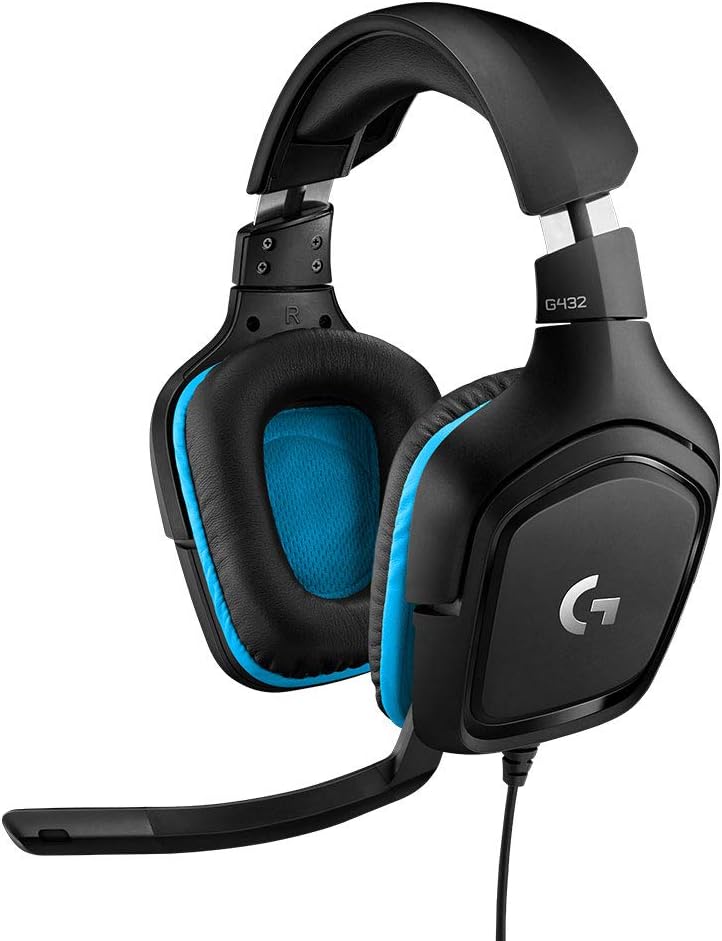
Logitech G432 Wired Gaming Headset,...





Product description


1 Turbo Mode
2 6-Axis


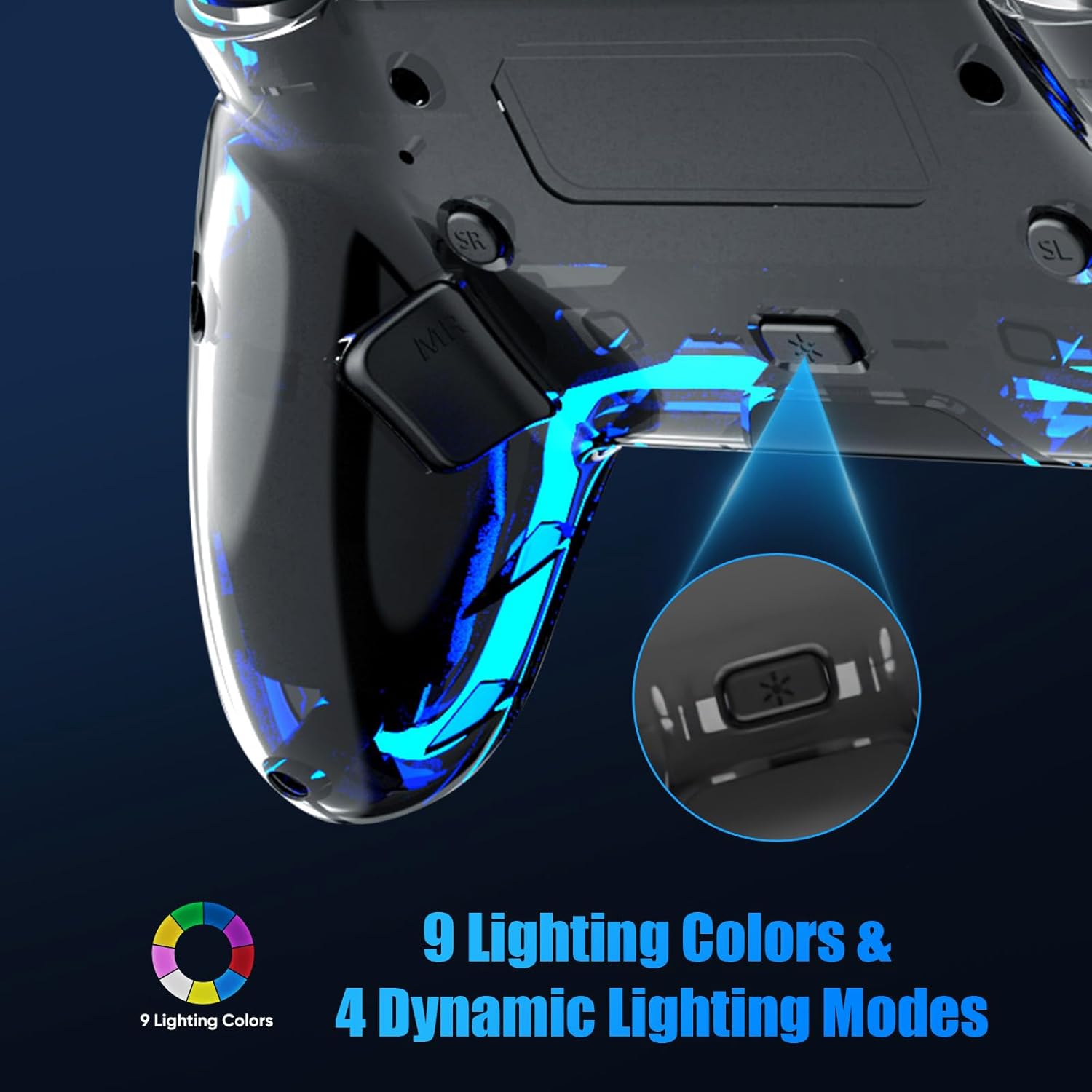
The colored lighting shown in the controller images is for illustration purposes only. The actual product features nine single-color lights and four lighting modes: Breathing – Fast Flash – Slow Flash – Gradient.
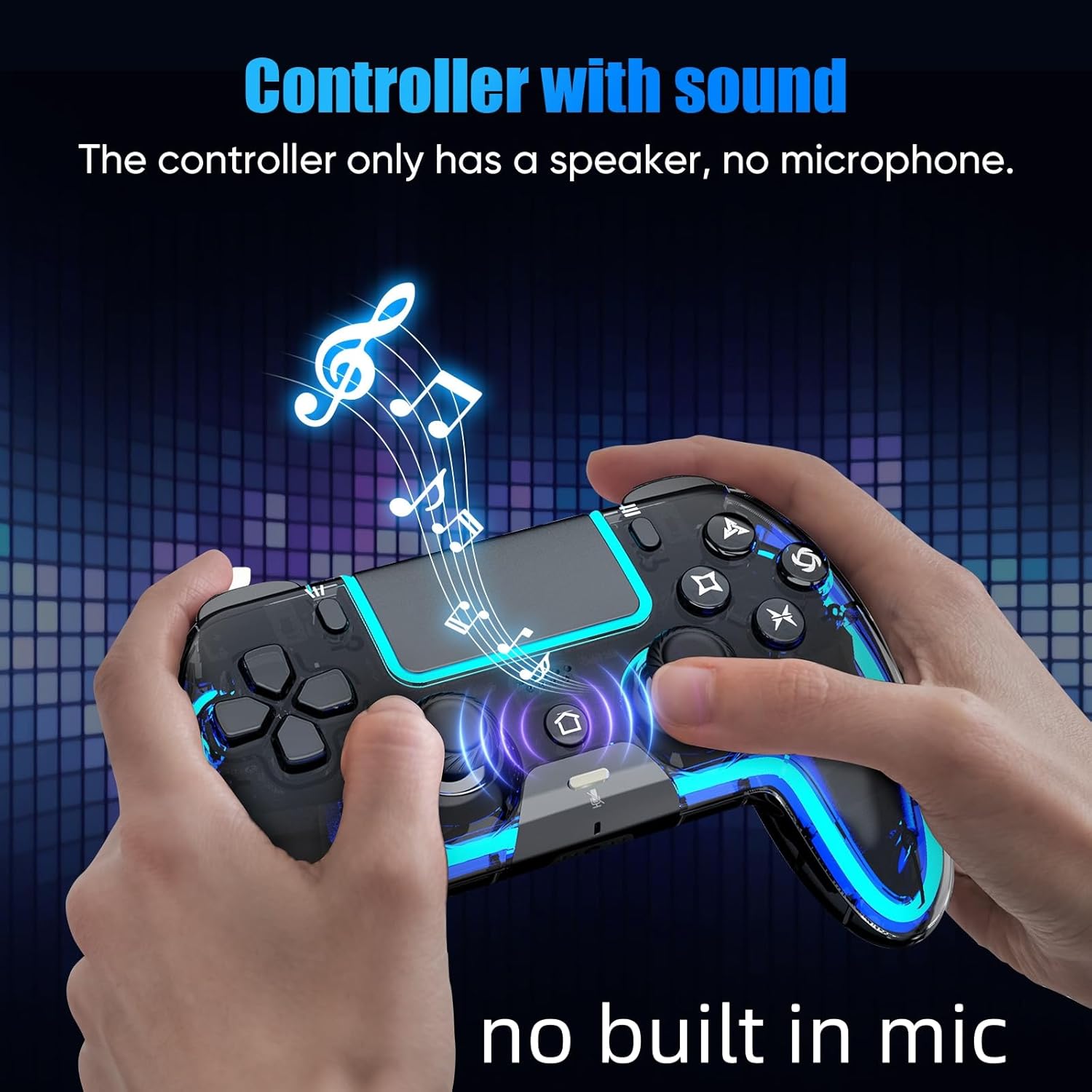
 Controller with Speaker
Sound effects and music come to life right in your palms
 Xinput Mode
Wired connection to a PC: Press Share and Menu buttons to switch XInput mode
 3.5mm TRRS Stereo Jack
Please insert the 3.5 mm plug gently to prevent long-term stress that may cause audio or microphone failure.
 800mAh Battery
Power Your Play

Built for Sharing: Grab a second controller and jump into the fun! Perfect for couch co-op, it lets you easily team up or face off in your favorite multiplayer games.
Q: How to connect the controller to PS5?
A: For the first connection, plug the controller into the PS5 with a USB Data cable, wait a few seconds for the host to recognize the controller data, then press the Home button. (Make sure PS5 settings allow controller connection over USB.) The controller can only remember the last connected device. If you recently used it on a PC/phone, you must re-pair it to the PS5 by USB Data cable
Q: The controller lights are flashing around the touchpad. What does it mean? How can I fix this?
A: Blue: normal connection. Yellow: using a non-data USB cable / charging. Flashing Blue rapidly: pairing for new device / calibration mode / turbo mode. Slow Blue blinking: searching for last paired device.Restarting the controller will stop the light from flashingCalibration Mode: is used to calibrate the controller and fix joystick drift. Press Share + Menu at the same time to enter Calibration Mode. When the lights start flashing, press L1, L2, R1, R2 2–3 times each. Rotate both joysticks fully in a circle 2–3 times. Press and hold the X button for 1 second to finish calibration and exit the mode. Once calibration is complete, the controller lights will stop flashing. A: Turbo mode: Press SL + button (L1 / L2 / R1 / R2 / X / Y / A / B) once to enable Turbo (rapid fire) for that button — it will keep triggering while you hold it down. Press the same combination again to enable Auto Fire — the button will keep triggering even when you’re not pressing it. Press the combination a third time to turn Turbo off for that button. Once Turbo off, the controller lights will stop flashing.
Q: My joystick is drifting. What should I do?
A: Don’t worry — joystick drift can usually be fixed by recalibrating the Hall Effect sticks. How to fix joystick drift: Enter Calibration Mode (see the Calibration Mode instructions above). Restart the controller after calibration to save the calibration data. Important: Do not lift or pull up the joystick during calibration. Doing so may damage the joystick or cause it to get stuck.
Q: My controller won’t connect to my PS5 and shows “Connect this device using a USB cable, or register it again.” What does this mean?
A: This message means the PS5 is not receiving data from the controller. In most cases, the USB cable you’re using is a charging-only cable, not a data cable. How to fix it: Use a USB data cable to connect the controller to your PS5. We strongly recommend using the included cable, as it supports both charging and data transfer. Once connected with a proper data cable, the controller should pair normally.
[Notes]: For the first connection, plug the controller into the PS-5 with a USB Data cable, wait a few seconds for the host to recognize the controller data, then press the Home button. (Make sure PS-5 settings allow controller connection over USB) The controller can only remember the last connected device. If you recently used it on a PC/phone, you must re-pair it to the PS-5 by USB Data cable. We recommend using the cable in the package, as it supports both charging and data transfer.
[Multi-Platform Compatibility]: Works with PS-5, PS-5 Pro/Slim, Mac, Android, Steam Deck, and Windows 10+ (PC wired only). Not compatible with PS-4.
[Customizable RGB Lighting]: Choose from 9 colors and 4 effects (Breathing, Fast Flash, Slow Flash, Gradient.). Remembers your last setting. (no monochrome breathing light, all dynamic effects have nine color loops, and you can watch the video to see the effect)
[Hall Effect Joystick]: Say goodbye to joystick drift! If your joystick ever feels drift, simply use the calibration function to restore precise control.
[Programmable Buttons & Turbo Mode]: Assign up to 1-16 button functions to M1/M2 using the SR button for custom macros and reduced wear on main buttons. Supports two Turbo modes (Auto & Manual) with 3 adjustable speeds(4/8/16Hz) for 8 keys—perfect for FPS and action games.
[6-Axis Gyro Sensor for Enhanced Control]: Equipped with a built-in 3D accelerometer and gyroscope for 6-axis motion sensing. (Great for fast-response games like NBA07, Tony Hawk’s, Blazing Angels, Genji, and Ridge Racer.)
[Speaker & 3.5mm TRRS stereo Audio Jack]: Immersive in-game audio through the built-in speaker. Note: This controller does not include a built-in mic—use external headsets via the 3.5mm TRRS stereo audio jack for voice chat. (Long press the mute button to turn off the headphone microphone/speaker/vibration. Or click to mute the headphone mic)
[Multi-Touch Touchpad]: The responsive touchpad detects swipes, taps, and presses—ideal for gestures, menu navigation, and zooming maps.
[Dual Vibration]: Delivers responsive, nuanced vibration for a deeper gaming experience (Vibration can be disabled using the mute button if needed.)
[Support & Firmware Upgrade]: If your controller requires a firmware update, contact us by email and we will respond within 24 hours with assistance.
Original price was: $59.99.$48.98Current price is: $48.98.