
Related Products

HUION KAMVAS Pro 16 Drawing Tablet...

HUION KAMVAS Pro 19 4K UHD Drawing...

HP 15.6″ Laptop with Microsoft...




Product description
The video showcases the product in use.The video guides you through product setup.The video compares multiple products.The video shows the product being unpacked. HUION HS64 Drawing Tablet

Upgraded 16384 Pen Pressure
Upgraded to 16384 levels of pressure sensitivity, the stylus provides you with ultimate precision and control. With no charging needed, the battery-free stylus makes it easy for beginners to create. The side buttons of the pen help you switch between pen and eraser instantly.
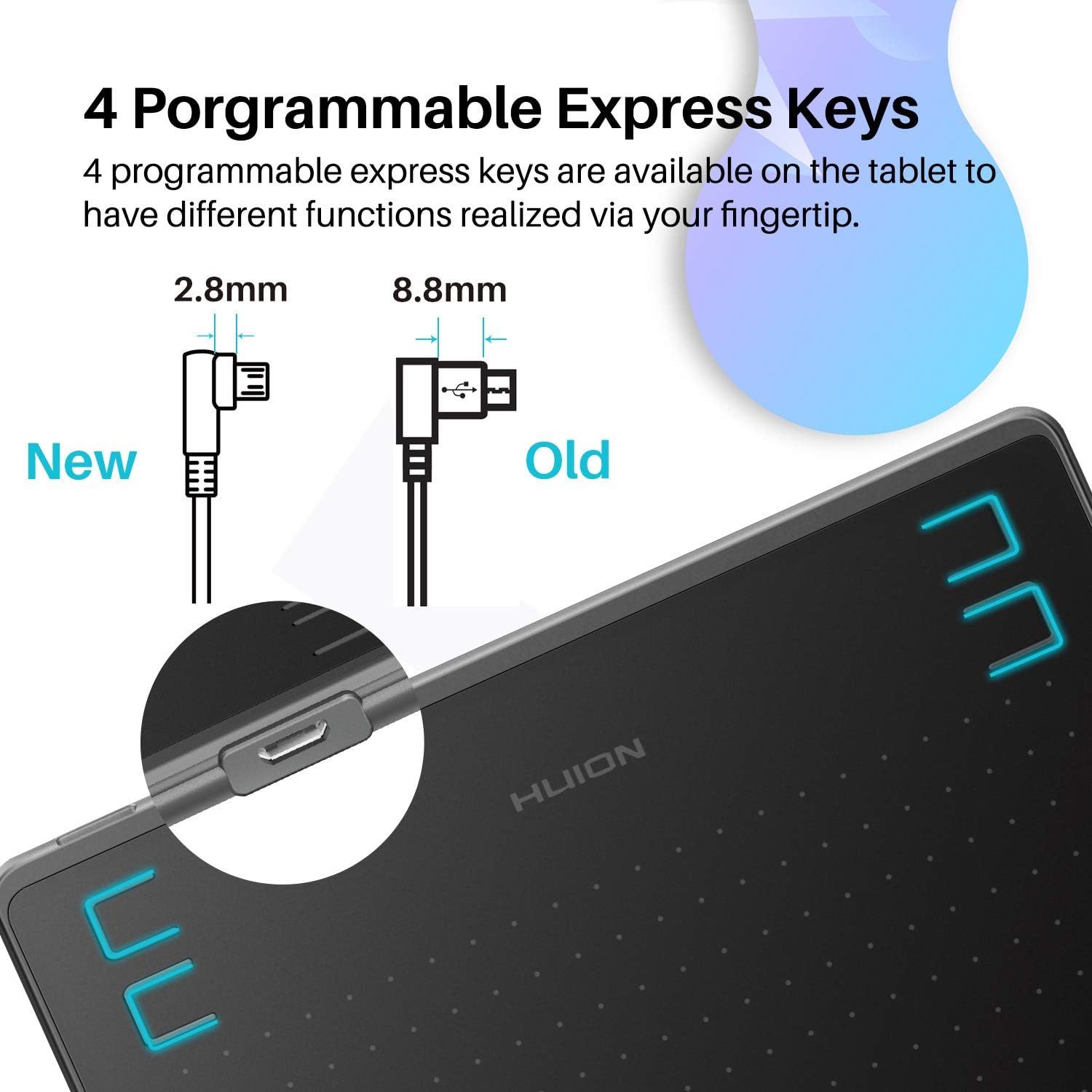
4 Customizable Press Keys
They are available on the tablet to have different functions realized via your fingertip, which will bring users higher efficiency as they draw. The shortcuts CAN’T be used under Mobile Mode.


Multi-OS Compatibility
Huion HS64 drawing tablet is compatible with Mac (MacOS 10.12 or later), PC (Windows 7 or later), Linux(Ubuntu) and select Android smartphones/tablets (OS version 6.0 or later).
The slim & compact design takes less desk space and makes it easy to carry between home, work, and school. It can be easily packed in your laptop bag and connected to an Android smartphone for on-the-go creation.
Works With Hundreds of Apps
It can be used with most pen-enabled creative software as well as many online learning applications and platforms on PC and Mac.

 For Teachers and Students
The teachers can use a tablet to explain concepts visually; Huion tablets and pens can help students to draw angles, write formulas, sketch, and diagram sentences easily and efficiently.
 For Creators
Huion HS64 is a creative editing tablet designed to speed up content creation whether it’s an illustration, animation, graphic design, or photo editing.
 For Game Playing
No need to install the Huion driver, you can play OSU! or other similar games directly on the HS64 OSU tablet with a sensitive stylus. It is great for entertainment and changes the way you game.
 Step 1
Plug the USB cable into your Huion drawing tablet and computer.
*The OTG adapter included is for Android phones/tablets connection.
 Step 2
Download and install the Huion driver on your computer.
*For Mac: installing the driver, requires Security & Privacy settings.
 Step 3
Restart your computer and follow the user manual to set up the shortcut keys, pen buttons, and working area, then you’re ready to go.
 Replacing the Nib
1. Take out the nib via the included nib extractor;
2. Insert the new nib.
[16384 Pen Pressure] Upgraded to 16384 levels of pressure sensitivity, the stylus provides you with ultimate precision and control. With no charging needed, the battery-free stylus makes it easy for beginners to create. The side buttons of the pen help you switch between pen and eraser instantly.
[Easy to Use] This pen tablet is perfect for kids and beginners for drawing, animation, photo-editing or design work in most programs including Adobe Photoshop, paint tool sai, illustrator, corel draw, corel painter, sketchbook, manga studio, clip studio paint and more
[Perfect Mouse Replacement] No need to install a driver, HS64 drawing pad with responsive stylus can replace the computer mouse and keyboard to enhance your workflow
[Support Linux/Mac/Windows/Android] Not only compatible with Linux(Ubuntu), Mac and Windows, Huion HS64 also supports Android 6.0 or later via an included OTG adapter to turn your phones into a digital drawing canvas
[Online Teaching] It is easier for teachers and students to edit, diagram, and annotate with a drawing pen on whiteboard in Zoom, Team and Xsplit while streaming or broadcasting
[Online Working] It is also compatible with Word, Powerpoint, OneNote and more for taking notes, signing documents, jotting down ideas while in web conferencing or remote working
[4 Customizable Press Keys] Set up the 4 programmable express keys to any shortcut combination you prefer in Huion driver and optimize your workflow
$35.99